For the most natural baby-photo background change, begin with a sharp source, select the baby and every supporting hand as one protected subject, and replace only the space behind them. Choose a new background with the same camera height and light direction as the original. Then check the face, hair, fingers, clothing edges and contact shadows at full size.
The phrase “change the background” sounds like one edit. In practice, it is three: separating the subject cleanly, creating a setting that fits the photograph, and blending the two without quietly redrawing the baby. The last part is where a charming result can become unfamiliar.
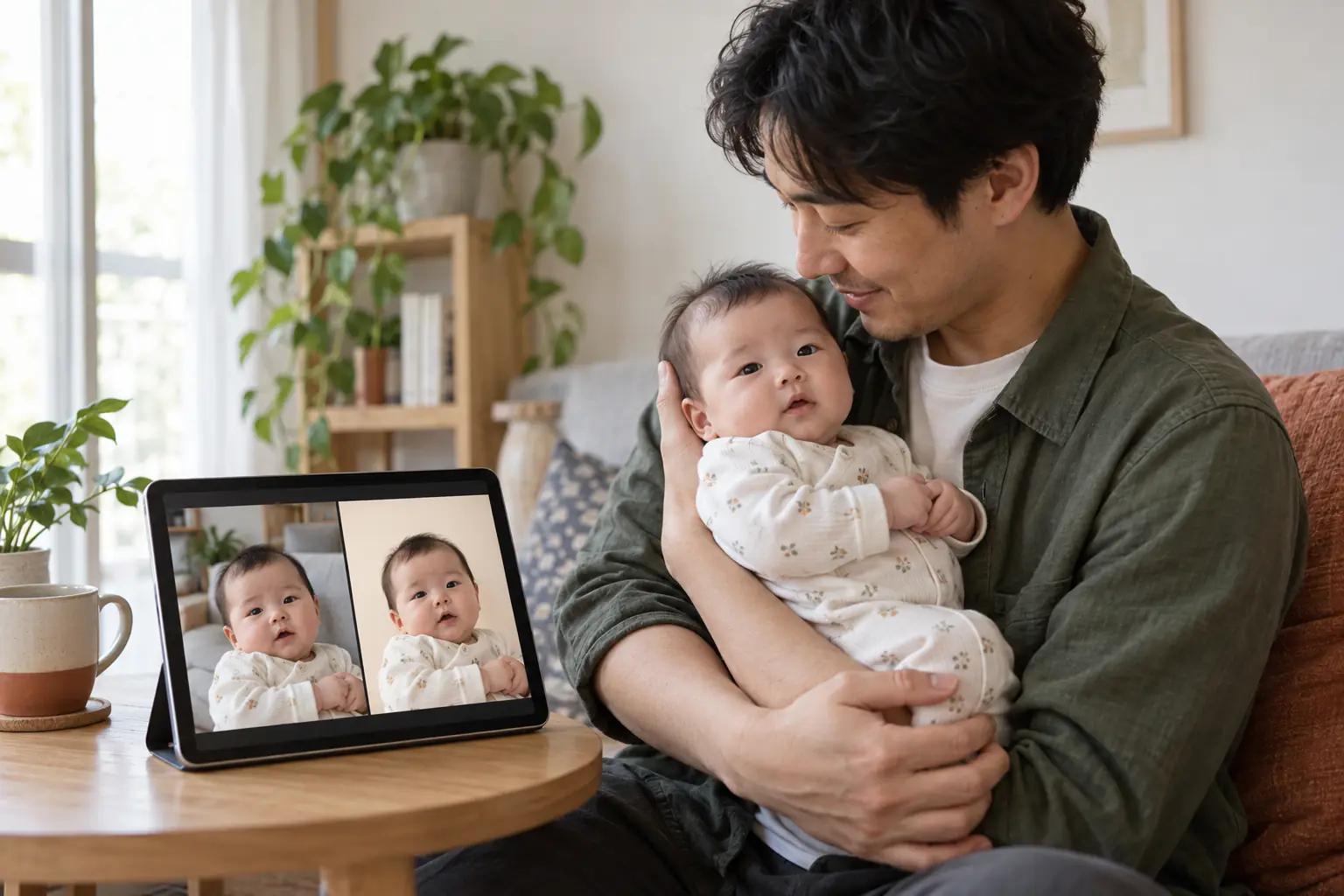
Choose a source that gives the editor clean evidence
A good source is not necessarily a studio photograph. A phone picture near a window can work beautifully if the face is in focus and the outline is easy to follow. Before opening an editor, check these five things:
- Face: both eyes, the nose and mouth are visible and not motion-blurred.
- Outline: the top of the head, ears, shoulders and visible limbs are inside the frame.
- Support: any adult hand, arm or lap supporting the baby is clearly visible and will remain in the selection.
- Light: the main light comes from one understandable direction, preferably a broad window rather than mixed colored bulbs.
- Resolution: the baby is large enough in the picture that hair and clothing edges contain real detail.
Avoid screenshots, downloaded social-media copies and portraits that have already been heavily smoothed. Each round of compression removes edge detail. Extreme low light, a blanket across the face or a hand crossing the eyes also forces the tool to guess.
If the photograph only needs tidying rather than a new scene, stop here. A small crop or exposure correction in the free browser baby photo editor will be more faithful than generating pixels you do not need.
An eight-step background-only workflow
- Duplicate the original. Work from a copy and keep the untouched file in your library. It is your reference for every later decision.
- Set the final crop early. Choose square, 4:5, landscape or print size before refining an edge that will be cropped away.
- Select the whole supported subject. Include the baby, clothing, blankets that touch the body and the adult support. Do not cut the baby away from the hand or lap that explains the pose.
- Inspect the mask. Zoom around hair, ears, fingers, toes, lace, bows and fuzzy fabric. Restore anything that has been clipped.
- Describe a simple background. Name the surface, wall color, light direction and degree of blur. One quiet room is easier to blend than a fantasy set full of props.
- Match perspective and light. A photo taken from above needs a background seen from above. If window light reaches the baby's left side, it should appear to come from the left in the new room too.
- Add a restrained contact shadow. The shadow beneath a blanket, adult arm or seated body should be soft and consistent with the source. Without it, the subject floats.
- Compare at 100 percent. Check identity first, anatomy second and scene logic third. If the face changed, return to the original rather than correcting the altered face.
Some apps separate “remove background” and “generate background.” That is useful: inspect the cutout on a plain gray layer before generating anything. Gray makes both bright halos and missing dark hair easier to see.
Pick a background that belongs with the source
| Your source photo | Backgrounds that usually blend well | What tends to fail |
|---|---|---|
| Soft window light, pale bedding | Warm cream studio paper, light linen, quiet nursery wall | Black theatrical set or hard spotlight |
| Warm lamp light | Muted evening nursery, warm wood, soft amber backdrop | Bright blue daylight unless the subject color is corrected first |
| Adult holding baby upright | Simple living room or studio wall with the adult included | Removing the adult to imply an unsupported upright pose |
| Overhead floor-level photo | Plain rug, muslin or seasonal flat-lay design | Eye-level room with a horizon line behind the baby |
| Outdoor open shade | Soft garden, porch or neutral exterior blur | Indoor floor and wall that conflict with the existing light |
Similarity is not boring; it is what sells the illusion. A quiet cream backdrop that shares the source's brightness will usually look more photographic than a detailed palace or moonlit forest. Put the creativity into color and atmosphere rather than improbable architecture.
Four background prompts you can adapt
These are written for an editor that accepts a reference image, a protected subject selection and text instructions. The preservation language reduces ambiguity, but it cannot force a model to keep every feature. Review the result.
1. Warm neutral studio
Replace only the background with seamless warm-cream studio paper and soft window light from camera left. Preserve the baby's face, expression, eyes, hair, skin texture, body, hands, clothing and pose exactly as shown. Keep every adult support point. Add one soft contact shadow that matches the source. No props, text or new accessories.
2. Simple nursery
Change only the room behind the subject to a calm nursery with a pale sage wall and one softly blurred wooden shelf in the distance. Match the original camera height, lens blur and right-side daylight. Do not alter any person, clothing, blanket or support. No crib accessories, cords, names, signs or small objects near the baby.
3. Outdoor garden blur
Replace the distant background with an open-shade garden in soft green bokeh. Keep the existing subject and foreground pixels unchanged, including hair edges, face, skin, hands and clothing. Match the gentle source light; no direct sun, flowers touching the baby, insects, text or fantasy effects.
4. Birth announcement with blank space
Create a minimal oatmeal-linen background with generous empty space on the left for wording I will add later. Preserve the baby and supporting adult exactly as photographed. Generate no letters, numbers, plaques or logos. Keep the face, limbs, clothing, light direction and contact shadows unchanged.
For more targeted language, the baby photo editing prompt library separates the allowed change from the details that must stay real.
Fix the clues that make a replacement look fake
A pale or dark halo
The old background is leaking through the edge, or the selection has been feathered too far. Tighten the mask a little. If the halo survives, choose a new setting closer in brightness and color to the original. A dark-haired baby cut from a bright white wall is easier to place on warm gray than on pure black.
Missing hair or soft fabric
Use a refine-hair or edge brush if the editor provides one, and work at high zoom. Restore clumps, not individual imaginary strands. Around fuzzy blankets, preserve the real edge texture instead of creating a perfectly smooth silhouette.
The baby looks as if they are floating
Check the point where the subject meets the surface. Add a broad, low-opacity contact shadow that is darkest at the contact point and softens outward. It should follow the same light direction as the nose and clothing folds. A hard oval shadow rarely looks convincing.
The face changed even though the prompt said “background only”
Reject the result and return to the source. If the editor has a protected or frozen region, lock the whole subject before trying again. Do not inpaint the generated eyes or mouth; another reconstruction is not a restoration. The AI baby photo troubleshooting checklist covers the less obvious identity shifts.
The new background is sharper than the baby
Reduce background detail and blur it slightly to match the source depth of field. Do not sharpen the baby's face aggressively to catch up. A modest background is preferable to invented eyelashes or skin texture.
Do not edit away the evidence of support
An adult hand can look inconvenient in a fantasy studio scene, but it may explain how the baby is safely positioned. Keep it. A background change should not turn a supported pose into the appearance of a baby balancing alone.
Start from an ordinary safe moment: lying on the back on a firm floor-level surface, doing supervised tummy time when developmentally ready, or resting in a secure adult hold. Avoid placing a baby in a basket, on a raised prop or near cords for the sake of an edit. The American Academy of Pediatrics' safe sleep guidance calls for a firm, flat sleep surface and no loose items around a sleeping infant. Our newborn photography safety guide applies those principles to home pictures.
AI can depict an impossible set without putting a real baby in it. That is one benefit of digital styling. It still helps to choose an image that does not invite someone else to recreate a visibly unsafe setup.
Keep announcements accurate
Ask for empty space, not generated wording. Add the name, date, time and weight yourself and check them against the family record. AI image tools can produce letter-like shapes that look correct at a glance and fail on closer reading.
If the new background depicts a place or event that never happened, describe the final picture as AI-styled. Keep the untouched photo in the family archive. Do not use a background-replaced image for a passport, visa, school ID or medical document.
Where Totti fits in this workflow
Totti is designed for a broader creative transformation, not pixel-level background masking. It takes a real baby photo and applies a selected photoshoot template that can reinterpret the background, lighting and outfit. That is useful when you want a finished studio-style portrait quickly; it is not the right tool when your requirement is “change this exact wall and nothing else.”
Use the before-and-after view to compare the face, expression, hands and clothing. If the transformation no longer represents your baby, discard it and try another template or source. Totti does not guarantee identity preservation, and it is not a future-baby predictor.

Want a complete studio-style transformation?
Totti offers 50+ photoshoot templates for real baby photos, a source comparison and HD 2048×2560 export. It is free to download for iPhone with iOS 17 or later, with optional premium templates and frames. Review every generated detail before saving.
Get Totti on the App StoreBackground-change checklist
- The original is backed up and remains untouched.
- The baby's full face and important edges are in focus.
- Every supporting hand, arm or lap remains visible.
- The new camera angle, horizon and light direction match the subject.
- Hair, ears, fingers and clothing have no clipped areas or halos.
- Contact shadows make physical sense.
- No generated text, extra limbs or repeated objects remain.
- The result is labeled AI-styled when the fictional setting could be mistaken for real.
When the checklist becomes a battle, simplify the background. A believable portrait usually comes from respecting the photograph you started with, not asking the generator to prove how much it can invent.