Free · no account · local editing
Edit your newborn photo now
Choose a photo, make gentle adjustments and download a JPEG. The editor runs in this browser; its code does not upload your selected photo or send it over the network.
Your photo stays on this device. The selected file is decoded locally and is not stored by this tool between page loads.
JPEG, PNG or WebP, up to 25 MB. For reliable editing, the longest edge is resized to at most 2400 pixels.
No photo selected.
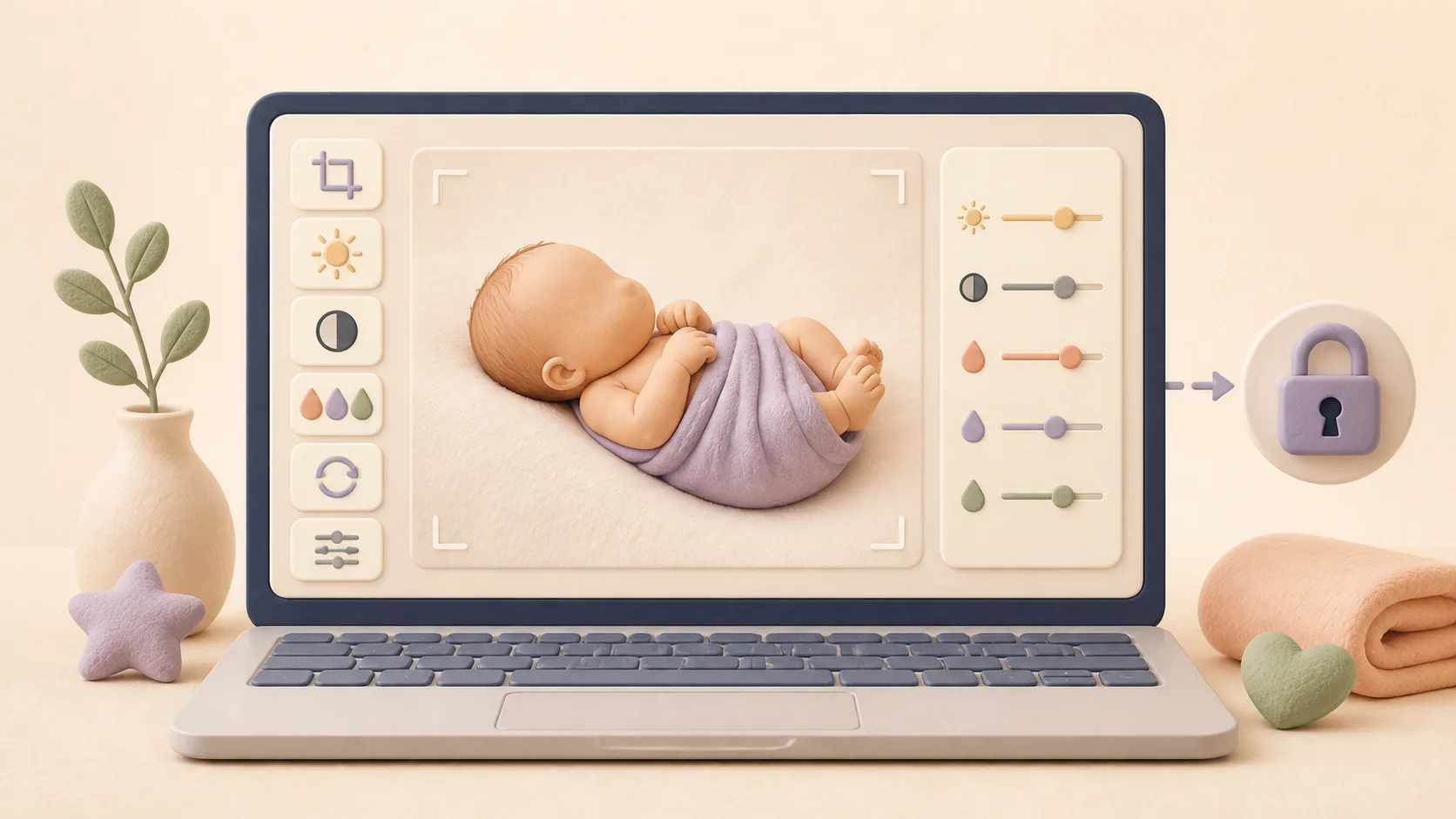
How to use the newborn photo editor
- Choose one photo. JPEG, PNG and WebP files up to 25 MB are supported.
- Pick a crop. Keep the original shape or choose a centered square or 4:5 portrait crop.
- Adjust gently. Use brightness, contrast, warmth and saturation, and rotate if needed.
- Download the result. The tool creates a JPEG on your device without sending the source photo to a server.
If you searched for a newborn photo editor online, the free tool above handles crop, rotation, brightness, contrast, warmth and saturation. Those edits can finish a good photo, but they cannot turn a cluttered bedroom into a styled portrait set. An AI photo app can generate a different scene, which is a separate job from normal editing.
The rest of this guide draws the line between those options. It explains when normal photo adjustments are enough, when they are not, what to check before giving a newborn photo to any service, and how AI restyling uses a snapshot as the source for a newly generated scene.
Is this online editor the Totti app?
No. The browser editor above is a free tool on this website for basic adjustments. Totti is a separate iPhone app for iOS 17 or later. Totti is free to download from the App Store, with optional in-app purchases, and is built for AI baby photoshoots rather than general-purpose photo retouching.
An online editor may be the right choice for a quick crop on a computer. The built-in phone editor is often the easiest choice for color and exposure. Totti fits the third use case: you have one clear baby snapshot and want a new portrait scene, matched outfit, frame or milestone style. Pick by task, not by whichever tool has the longest feature list.
| Editor type | Best for | Check before using |
|---|---|---|
| This browser editor | Centered crop, rotation, brightness, contrast, warmth and saturation | Your selected photo is processed locally and is never uploaded by the tool |
| Other online editor | Desktop resize, retouching and more advanced cleanup | Upload policy, account requirement, export resolution and deletion controls |
| Built-in phone editor | Fast adjustments without uploading to a new editing service | Whether edits are reversible and the original stays available |
| AI restyling app | New backdrop, lighting, outfit, milestone style and portrait treatment | Supported device, output quality, privacy details and how closely the result matches the source |
What should you check before uploading a newborn photo?
Baby photos deserve a little more scrutiny than a landscape or a product shot. Before using any online editor or app, read its privacy information and answer four questions: who processes the upload, why it is used, how long it is retained, and whether you can remove it. Do not assume the answers from a “free” label.
- Crop identifying details first. Remove hospital wristbands, paperwork, room numbers, addresses and geotags that do not belong in the finished photo.
- Upload the minimum. If one clear frame does the job, there is no reason to send an entire camera roll.
- Keep the original. Save an untouched copy before editing or generating anything, especially if the photo marks a first-day or milestone memory.
- Review the output at full size. Check the face, hands, clothing edges, text and background. AI results should be treated as drafts until you compare them with the source.
Our separate guide to sharing baby photos without oversharing covers the audience decision after the edit is finished.
When is a normal baby photo editor enough?
If the photo is fundamentally good (decent light, clean-ish background, sharp face), small edits finish the job:
- Slightly dark: lift exposure and shadows a touch.
- Distracting edges: crop tighter on the face.
- Yellow indoor cast: nudge white balance cooler.
- Crooked horizon: straighten and re-crop.
- Flat colors: gentle contrast and warmth. Resist heavy filters, which date fast and distort newborn skin tones.
Keep each adjustment small enough that you would struggle to spot it beside the untouched original. Newborn skin goes waxy under heavy noise reduction, and that sheen is what parents notice years later. The built-in iPhone editor covers all of this; our iPhone newborn photo tips show how to get shots that barely need edits at all.
What can't a baby photo editor fix?
No slider can fix a photo whose problem is the scene itself:
- Cluttered background: toys, cables, dishes. Cropping only gets you so far before you've cropped out the baby.
- Bad light at the source: harsh overhead shadows or a dim room pushed to grainy brightness.
- Everyday outfit: the milk-stained onesie in an otherwise perfect frame.
- No styling: the moment is precious, but the photo looks like a Tuesday, not a portrait.
A quick way to sort them. If you can name the fix in a single slider, edit it. If your instinct is to tidy the room and shoot again, no editor gets you there.
An editor adjusts the photo you took. AI restyling builds a different scene from the same source. Both can be useful, but they solve different problems.
Beyond the baby photo editor, into AI restyling
This is where Totti is a different tool, not a better filter. Instead of only adjusting existing pixels, it generates a new scene from the source photo, including the background, lighting, outfit and styling. The result may make the dim bedroom look like a softly lit set or replace the everyday outfit with a virtual one. Generated facial and small details can vary, so compare every result with the original rather than assuming it is an exact match.
You pick from 50+ templates (Classic, Cozy, Outdoor, plus seasonal themes), and a built-in before/after slider lets you drag between the original snapshot and the generated portrait. Check the face and small details instead of assuming every generation is a keeper. That verification step separates a useful restyle from a result you should discard and try again.
Choosing the right source photo
Restyling works best when the AI gets a good look at the star. Pick a snapshot where your baby's face is sharp and clearly visible, taken in daylight rather than lamplight, from straight-on or slightly above. Extreme angles make any portrait style harder. The background can be as messy as real life; that's the part getting replaced. And keep it to one baby per photo for the portrait templates.
Which do you need, editing or AI restyling?
Almost every camera-roll photo wants one or the other, rarely both. The test is where the problem lives. Exposure, color cast, contrast and crop are things the camera recorded slightly wrong, so an editor puts them right. Anything you would have had to change before pressing the shutter is restyling territory.
| Problem | Normal editor | AI restyling (Totti) |
|---|---|---|
| Slightly dark or flat | ✓ Quick fix | Overkill |
| Cluttered background | ✗ Crop only | ✓ New scene entirely |
| Harsh or dim lighting | Partial rescue | ✓ Relit from scratch |
| Everyday outfit | ✗ | ✓ Virtual wardrobe |
| "Make it a portrait" | ✗ | ✓ Studio styling + props |
| Baby's face | Usually unchanged by global adjustments | Generated details may vary; always compare against the source |
Frames and finishing touches
Once the portrait looks right, Totti's frame chooser adds the finished-print feel with Polaroid, Vintage, Wood, Gold and Floral frames (or none at all). A Polaroid frame turns a milestone shot into instant-camera nostalgia; Wood and Gold read as nursery-wall art; Floral suits spring and Easter portraits.
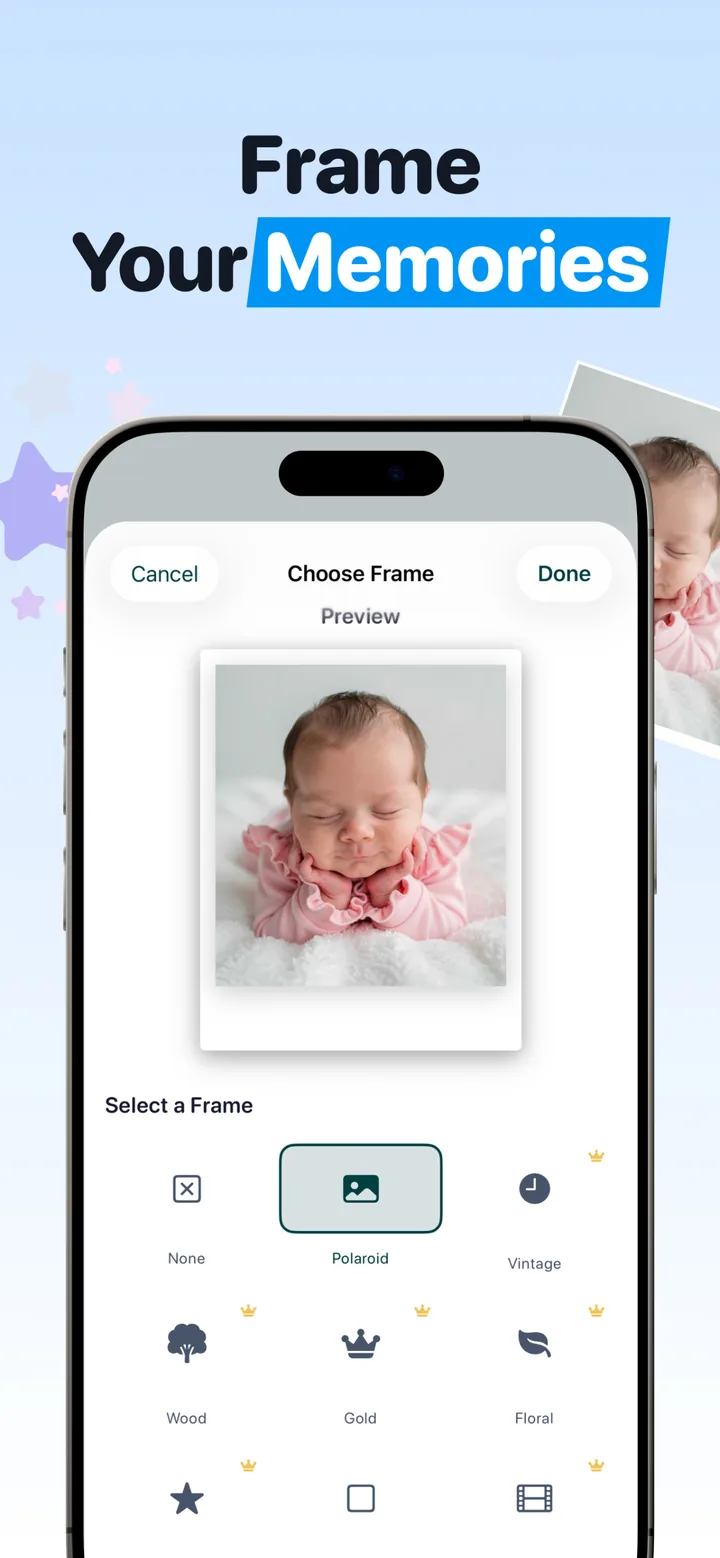
Then export in HD at 2048×2560, enough pixels for a 5×7 print at 300 DPI with room to crop. Keep the everyday source photo beside its portrait version rather than treating the restyle as a replacement. If your camera roll is chaos, our guide to organizing baby photos will help you keep both versions findable.

More than an editor, free to try
Choose one everyday snapshot and let Totti generate a portrait scene with new wardrobe and lighting. Compare every result with the source using the before/after slider, add a frame, then export in HD (2048×2560). Free to download on iPhone.
Get Totti on the App StoreA simple workflow for your camera roll
- Star your best frames. Favorite the sharp, clear-face shots as you go. These are prime source material.
- Quick-edit the good ones. Exposure, crop, straighten. Thirty seconds each.
- Restyle the special ones. On milestone days, announcement shots and holiday cards, anywhere you want "portrait" instead of "snapshot," run it through Totti. Milestone cards with wooden plaques work beautifully here; see our baby milestone photos guide.
- Export HD, print the winners. Screens forget; fridge doors remember.
Your real, everyday photos are the memory, and nothing here replaces them. The special moments simply deserve the studio treatment, and giving it to them no longer takes a studio, a photographer, an editing course. One good snapshot and a few taps will do.