If an AI edit no longer looks like your baby, stop editing that result and return to the original photo. Try a clearer source or a less ambitious style, then compare the new output side by side with the original. Do not use another AI pass to “fix” an already altered face: it gives the model another chance to invent details.
The glaring mistakes are easy to reject. Six fingers will get anyone's attention. The more important errors are quieter: a rounder chin, an unfamiliar smile, older-looking eyes or a birthmark that has vanished. A polished portrait can still be the wrong portrait.
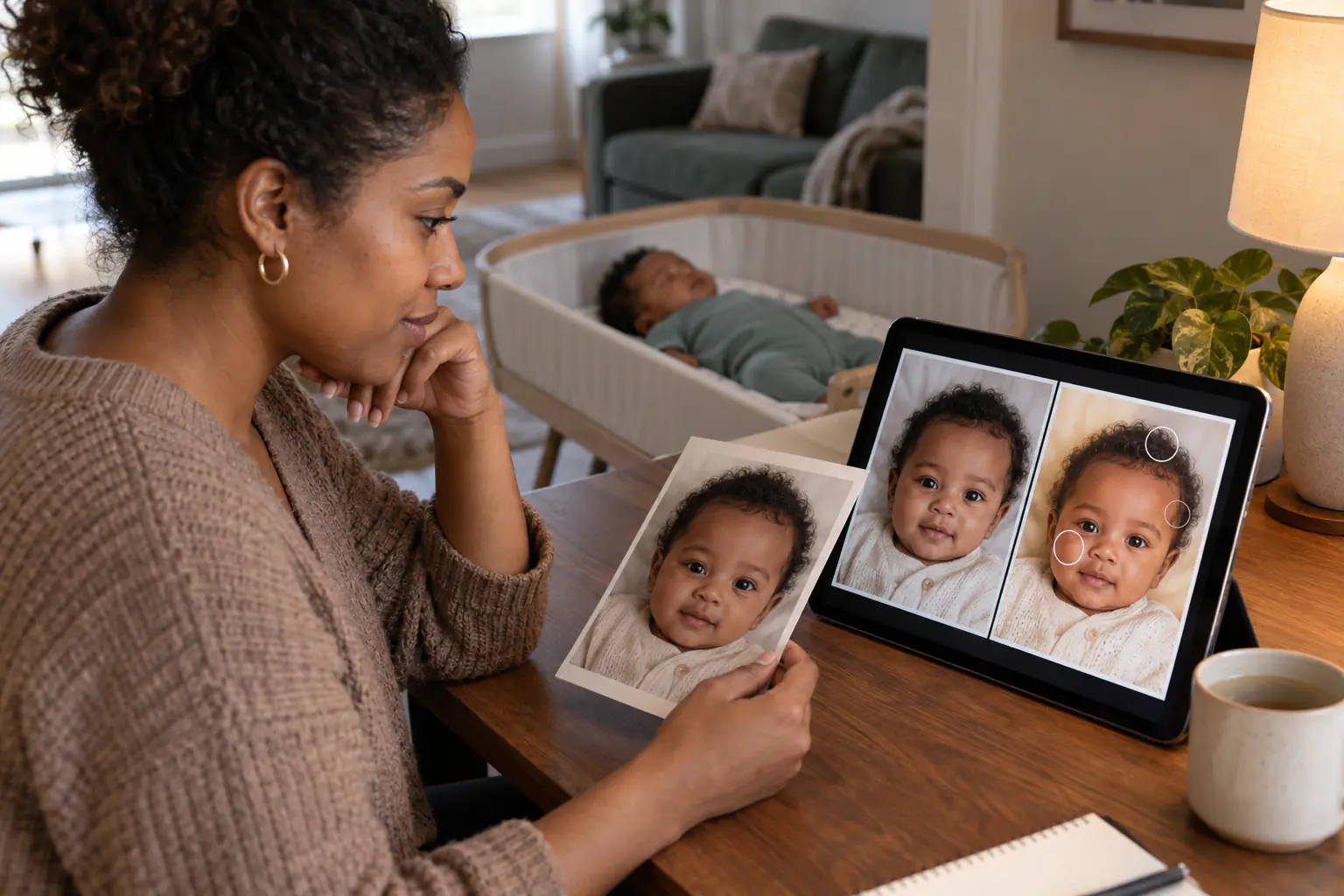
First, decide whether the result is repairable
Small scene problems can sometimes be corrected without touching the child: a crooked horizon, a distracting object in the far background or an overly warm color cast. Identity errors are different. If the eyes, nose, mouth, face shape or expression have changed, the sound move is a fresh generation from the source.
| What you see | Best next move | Why |
|---|---|---|
| Wrong face shape, eyes or mouth | Discard and regenerate from the original | Editing the changed face compounds invention |
| Extra or merged fingers | Regenerate with a clearer source or different crop | Hands are structural, not a simple color correction |
| Good baby, poor background color | Use a normal color editor or a tightly masked background edit | The subject does not need another generative pass |
| Minor edge halo around clothing | Try a simpler, similar-toned backdrop | Strong contrast exposes weak masking |
| Text or date is misspelled | Remove generated text and typeset it separately | Names and dates must be exact |
1. The face looks like a different baby
What to inspect: eye spacing and shape, eyelids, nose width, the curve of the upper lip, cheeks, ears, chin, hairline and distinctive marks. Compare at the same zoom. Switching quickly between the two images often reveals a shift that is hard to name when they sit far apart.
Why it happens: the source may be small, soft, partly covered or strongly angled. An elaborate template can also pull the image toward a generic studio aesthetic. Models tend to “complete” uncertain details; they do not know which tiny asymmetry makes the face familiar to you.
What to do: start over with a sharp, front-facing or gentle three-quarter view. Choose a template closer to the source lighting and head angle. If you use a prompt-based editor, limit the edit: “Replace only the plain wall behind the subject. Preserve the baby's face, expression, eye color, skin texture, hairline, ears and all visible marks exactly as photographed.” This is a constraint, not a guarantee, so compare again.
2. The baby looks older, younger or oddly expressive
Look for new teeth, thicker hair, a lengthened face, more defined eyebrows or a smile that was not in the source. “Make the baby happier” sounds harmless, but changing an expression requires reconstructing the mouth, cheeks and often the eyes. That can change identity more than a new background does.
Keep the real expression. A serious look, a yawn or a half-open mouth belongs to the moment. If the template strongly conflicts with that expression, choose another template rather than asking the model to manufacture a grin.
Age drift often begins with scale. A very small face gives the system less evidence, while adult-style clothing, upright posture or dramatic fashion lighting can make an infant read as older. Use a closer crop with the whole head visible and choose age-appropriate styling.
3. Hands, feet or adult support look wrong
Count fingers and toes, but do not stop there. Check where each limb begins and ends. A wrist should meet a hand; a foot should not dissolve into fabric; an adult's supporting palm should not become part of the baby's clothing.
Never ask an editor to remove the hand that was physically supporting a newborn so the pose appears unsupported. Some professional newborn images are composites in which a trained photographer keeps contact in every source frame. A clean final picture does not mean the baby was ever balanced alone. For home photography, keep the support visible or use a naturally safe source pose. The American Academy of Pediatrics' safe sleep guidance recommends a firm, flat surface and back sleeping; a photo treatment should never become a reason to compromise the real setup.
If the hands are partly hidden or motion-blurred, use another frame from the same burst if you have one. A clean source is more reliable than asking AI to reconstruct anatomy it cannot see.
4. Hair, ears or clothing look pasted onto the background
Hard cutout lines, bright halos and missing wisps usually appear where the source subject and new backdrop have very different colors or light. Fine hair, translucent fabric and fuzzy blankets are difficult edges.
Try a background with similar brightness to the original room. A pale nursery source usually blends more naturally into cream, oatmeal or soft gray than into black. Keep the original light direction: if the baby's left cheek is bright, a new “window” should not appear on the right.
For a mask-based editor, zoom in around hair, ears, shoulders, fingers and toes. Feathering should be subtle. Too much creates a foggy outline; too little looks like a sticker. Our guide to changing a baby-photo background with AI walks through the background-only version of this job.
5. Skin looks waxy, over-smoothed or strangely colored
Real baby skin has variation: soft redness, tiny folds, dry patches and changing color across the face. “Perfect skin” prompts tend to erase those cues. Aggressive sharpening can do the opposite, turning fine texture into grit.
For a generated result, try a less stylized template and avoid beauty words such as flawless, porcelain or airbrushed. For a normal photo that only needs correction, use small exposure and white-balance adjustments. The five basic baby-photo edits explain a non-generative sequence that keeps the original pixels in charge.
Judge color on more than one screen if a print matters. Warm nursery bulbs often create orange skin, while an overly cool correction can make it gray. A neutral onesie or white sheet in the frame can help you notice a color cast, but it is not a medical reference. A photograph should never be used to assess a baby's health.
6. The background looks convincing until you study it
Follow the shadows. They should point in one direction and become softer with distance. Check whether the body has believable contact with the surface, whether furniture legs meet the floor and whether repeated toys or flowers quietly multiply.
Generated words deserve their own inspection. Names, dates, weights and times can be wrong even when the typography looks elegant. Ask for blank space and add verified information in a layout tool. Never leave the accuracy of a birth announcement to a decorative text generator.
Also ask a blunt question: could this scene encourage someone to copy an unsafe setup? A baby depicted inside a suspended prop or high on an unguarded surface may be fictional, but the visual still communicates a practice. Prefer simple floor-level or securely held scenes.
The five-step rescue plan
- Keep the source untouched. Duplicate it before any crop or correction. Never overwrite the only original.
- Name one failure. “The left eye changed shape” is actionable; “it feels weird” is not. If several identity details changed, skip repair and regenerate.
- Reduce the creative distance. Choose a backdrop, angle and light closer to the source. A modest change often looks more believable than a dramatic one.
- Use the right kind of editor. Crop, exposure, warmth and saturation belong in a conventional editor. Use generation only when you actually need new visual content.
- Review from face to frame edge. Face, anatomy, support, clothing, hair, shadows, props and text. Reject anything you would feel the need to explain away.
When you use Totti
Totti works from a real baby photo and offers a before-and-after comparison. If one template changes the face or creates a hand, clothing or background artifact, discard that output. Try a clearer source, a closer crop or a different template. Do not assume that repeating the same generation will produce a faithful result, and do not present an AI-styled portrait as documentary evidence of a real photoshoot.
For a simple brightness, crop, contrast, warmth or saturation change, use the free browser editor instead. It works locally in the browser for those adjustments and does not invent a new face or scene.

Try a different creative direction, not another patch
Totti lets you start again from the real source photo, choose from 50+ portrait templates and compare the generated result before saving. It is free to download for iPhone with iOS 17 or later; some templates and frames are optional in-app purchases.
Get Totti on the App StorePrivacy still matters when a result fails
A discarded generation may be gone from your screen without being deleted from a provider's systems. Read the current policy for retention, training, third-party sharing and deletion. The developer-supplied App Privacy section on Totti's store listing and the linked privacy policy are the places to check before an upload; other apps have their own terms.
Minimize the source before it leaves your device. Crop out name cards, hospital details, house numbers and school clothing. The Australian eSafety Commissioner's child-photo privacy checklist is useful even if you never post the final picture publicly.
Three questions before keeping the export
- Would a close family member recognize the baby without context? If not, start again.
- Can I account for every hand, foot and support point? If not, discard it.
- Would the caption still be honest if it said “AI-styled”? If that changes the story, the image may be doing too much.
There is no prize for rescuing every generation. The best editing decision is often a quick rejection, followed by a simpler attempt from a better photograph.