Gemini is worth considering when your baby-photo brief involves a custom scene or a written editing request. Totti fits a guided, baby-focused portrait workflow on iPhone. Start by deciding what must stay faithful to the original and what you actually want to change. That decision matters more than a broad claim that one AI is “best.”
Disclosure and method: this comparison is published by Totti. We reviewed Google’s official image-generation and editing guidance and Totti’s U.S. App Store listing on November 1, 2026. We did not run a controlled Gemini-versus-Totti output, timing or usability test. The hero is an ImageGen illustration, not either product’s output. We receive no Gemini affiliate commission and imply no affiliation or endorsement.
Start with a reference brief, not a tool name
A useful brief has three parts: the source, the intended change and the protected area. “A parent-held baby photo; replace a busy background with plain cream; keep the child and all supporting arms unchanged” is specific enough to evaluate. “Make this a professional baby photo” leaves far more room for a generator to reinvent skin, clothes, pose and lighting.
For a milestone keepsake, add the destination: a family message, a small print or a portrait to place inside a card. A close crop may work beautifully in a message but leave no room for an ornament hole or invitation wording. Planning the destination first helps you avoid repeated generation just to recover missing space around the subject.
Keep the brief separate from the factual text. A generator can create a visual concept, but an exact age, name or event time belongs in editable text that you proofread. This is especially useful for 100-day portraits, where an attractive image with an incorrect number misses the point of the keepsake.
What do the official workflows actually offer?
| Decision | Gemini | Totti |
|---|---|---|
| Starting point | Written requests, image uploads and template options | An existing baby photo and baby-focused portrait choices |
| Custom brief | Describe and refine an image edit | Choose among available styles; arbitrary prompt editing is not established by this comparison |
| Before starting | Check account, age, language, region and feature access | Check iPhone compatibility, available styles and purchase screens |
| Finished card | Review the image and verify any generated lettering | Place the approved portrait in a separate layout editor for exact text |
Google documents editing an uploaded image, working with reference images and choosing a template or a prompt. Totti’s listing describes 50+ baby-photo templates with outfit, seasonal and milestone themes. Both therefore provide ways to begin from a visual choice. A fair comparison should not pretend that templates belong exclusively to one app.
Feature access can vary. Check Google’s current requirements for the account you will use, rather than assuming a work, school or personal account has identical tools. Check Totti’s current App Store compatibility on your iPhone. If a feature is unavailable, that is a practical reason to choose another workflow; it does not tell you anything about the quality of an output you have not made.
How to plan a restrained Gemini edit
Begin with one clear source and one change. A reasonable first request is: “Edit only the distant background into a plain warm-cream wall. Preserve the baby’s face, natural marks, expression, hands, clothing, body position and every supporting adult hand. Keep the existing crop and light direction. Add no props or text.” This is an original suggested prompt, not a result tested inside Gemini for this article.
If you introduce a second reference, explain what it is for. A room-color reference can communicate a palette without becoming permission to replace the baby’s features or clothing. Do not upload another family’s child as a style reference. A written description, a color swatch or a room image you have permission to use may be enough. Extra references create extra questions about what the model is supposed to copy.
Evaluate the first result against the brief before requesting more embellishment. Did only the background change? Did the adult’s arm remain continuous? Does the child still look familiar? If not, return to the original and simplify the request. Do not assume that adding “preserve identity” repairs every earlier change. Those words express intent; inspection determines whether the output is acceptable.
For a sequence of requests, save the original and name the versions by task, such as background, warmth and final crop. This is an organizational suggestion, not a claim that Gemini provides that naming system. It keeps a pleasing later image from hiding the fact that an earlier edit changed the child. Our background-change guide explains how to keep the editable area small.
How to plan the same portrait in Totti
Use Totti when the task is better expressed as “show me a baby portrait look I can choose” than as a detailed custom brief. Browse the current style selection and pick a concept that works with the source angle and visible support. A familiar pose requires less visual invention than a dramatic change from a parent’s arms to a different scene.
Keep the selected style and the real event separate in your mind. A seasonal background can create a keepsake without proving a seasonal photoshoot took place. A milestone-themed output can mark a family occasion without documenting a new sitting ability. Do not pick an image because it makes the baby appear older or more physically capable than they were.
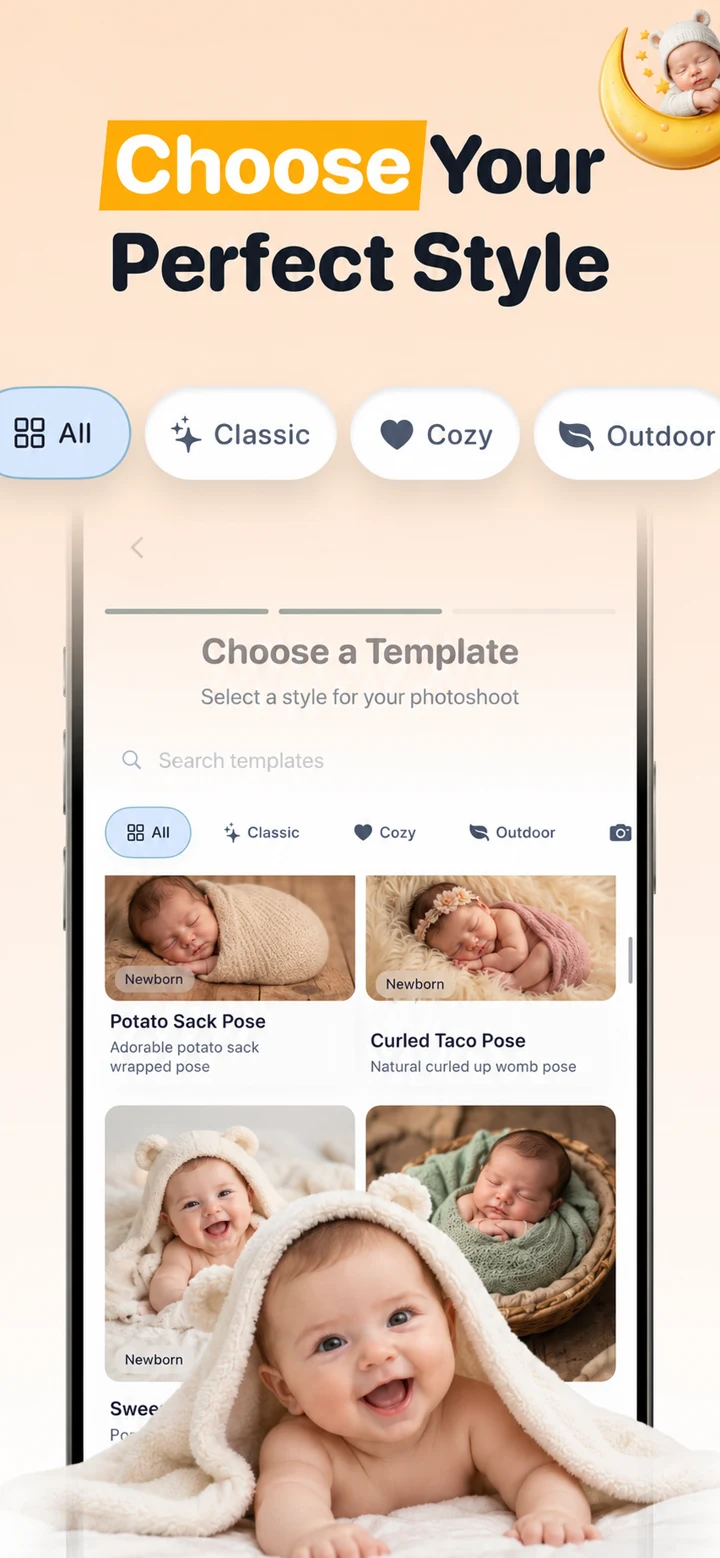
After generation, compare the saved result with the source. Use the same recognition, anatomy and support checks you would use for a conversational edit. A guided selection reduces the number of creative choices you make at the start; it does not certify the result at the end. Our baby-photo troubleshooting guide helps distinguish a poor source fit from a result you should simply discard.
Three briefs that lead to different choices
A room cleanup for a meaningful family moment
You want the actual cuddle to remain the subject, but a bright object draws the eye. Try a crop first. If the object cannot be excluded, a narrowly described conversational edit may fit better than a complete portrait style. Keep the original because the uncluttered version is still an edited interpretation of the setting.
A coordinated milestone portrait for an album
You have a clear source and want to browse a baby-focused look. Totti may be a direct starting point. Choose one visual treatment you can repeat without forcing every month into the same pose. A consistent border and typed date in the album can create continuity even when the baby’s position changes. Consistency should come from layout, not from repeatedly reconstructing a face.
A custom seasonal card with a particular palette
If the background must match a cream-and-sage card design, a written custom request can communicate that palette. If an available Totti style already fits, choosing it may be sufficient. Neither route establishes which will be faster for you. Approve the portrait first, then build the card in a design tool. The Christmas article shows three actual ImageGen background edits as examples of how to inspect this kind of brief.
Use an acceptance sheet before you export
Write four headings on a note: identity, support, scene and facts. Under identity, check the face and recognizable details. Under support, trace hands, arms and contact points. Under scene, check shadows, edges and the boundary between clothes and background. Under facts, verify the milestone, name and date in the finished layout.
A result can pass one category and fail another. A lovely room does not compensate for a strange hand. Accurate lettering does not compensate for an unfamiliar face. When something fails, either make a narrower request from the original or keep the original photograph. You do not owe the generator another attempt just because you have already spent time on it.
Also inspect at the destination size. A small message thumbnail may hide an awkward eye or unreadable date. A large print may expose those details. Keep one full-resolution approved file and derive your sharing crop from it, rather than repeatedly saving screenshots of the editing interface.
Cost, accounts and photo processing
Check the current allowance and purchase terms in the product you use. Totti is free to download with optional in-app purchases. Gemini’s available image features and limits depend on the current offering and account. This page does not promise unlimited free generation, a specific number of attempts or a price comparison that stays accurate across countries.
Review the Gemini Apps Privacy Hub and Totti’s privacy disclosures before uploading. A generated portrait is a separate decision from a local crop in Photos. If your goal is only to hide a face before sharing, use the crop-and-cover workflow rather than uploading the image for a creative transformation.
Choose the route that matches the brief you can actually evaluate. Gemini is a broad conversational image workspace; Totti is a focused baby-portrait app. Neither description establishes a universal winner. For another conversational option, see our ChatGPT comparison; for the practical first step in either route, keep a clear source and define one allowed change.

Want baby-focused portrait styles on iPhone?
View Totti’s current styles and purchase options on the App Store. Start with a clear existing photo and approve the result before sharing.
View Totti on the App StoreFor iPhone. Free to download; optional in-app purchases. Check current availability and terms before uploading a photo.