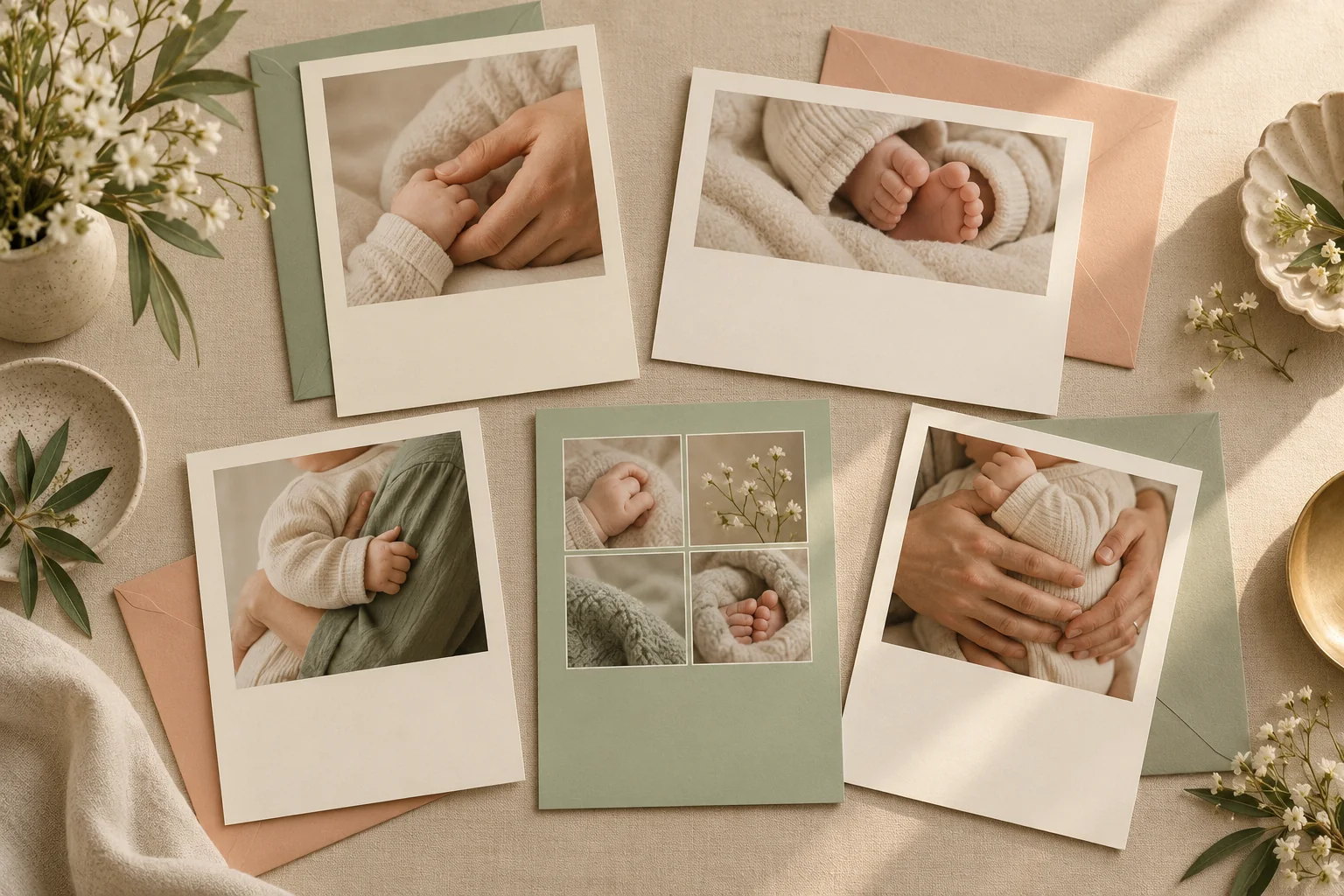
A faceless announcement works best when the photograph looks intentional before you add the words. Choose a tiny-hand detail, covered feet or a crop of your baby in supporting arms. These five original card layouts give those details room, with editable space for the short message you choose to share.
The files are free personal-use design resources from Totti Editorial. They contain placeholder shapes and sample wording, not photographs, hidden tracking or real family details. Open an SVG in an editor that supports SVG import and editable text, replace the placeholder with your own photo, and export a separate finished image. Import behavior varies by editor; some flatten text or convert it to shapes.
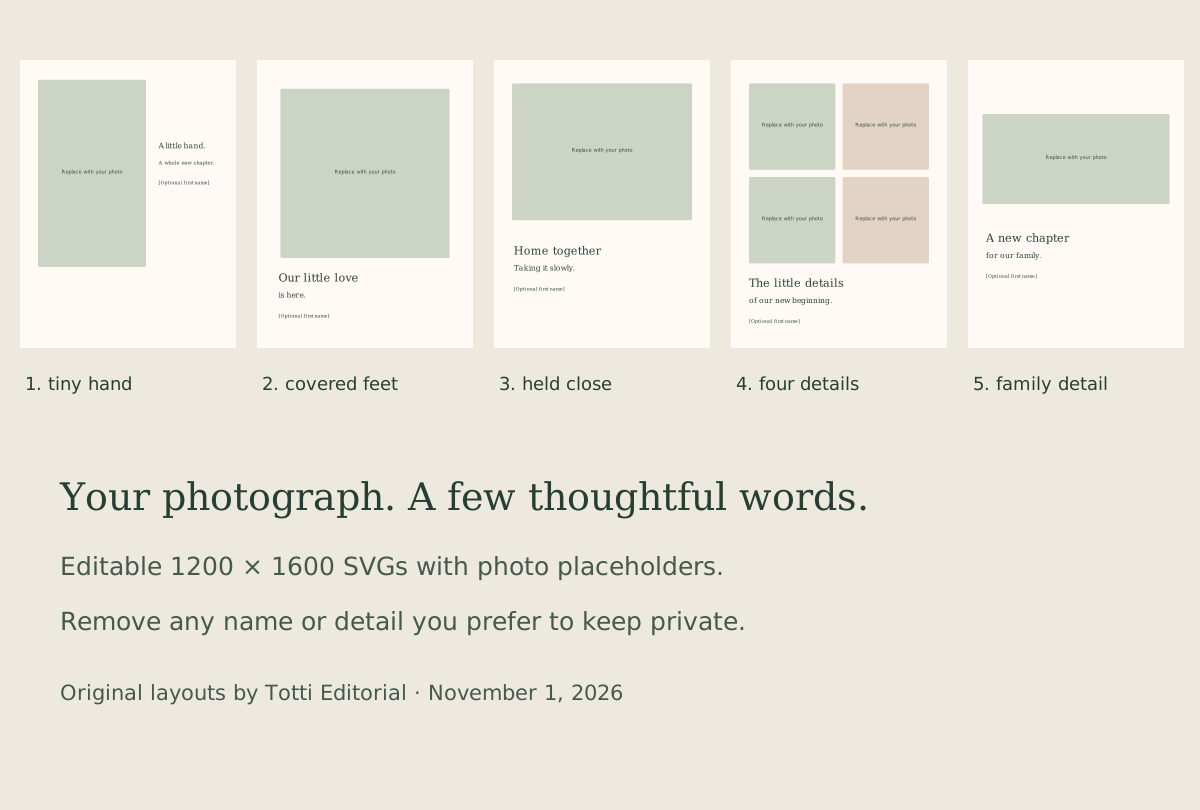
Five layouts for five different photo crops
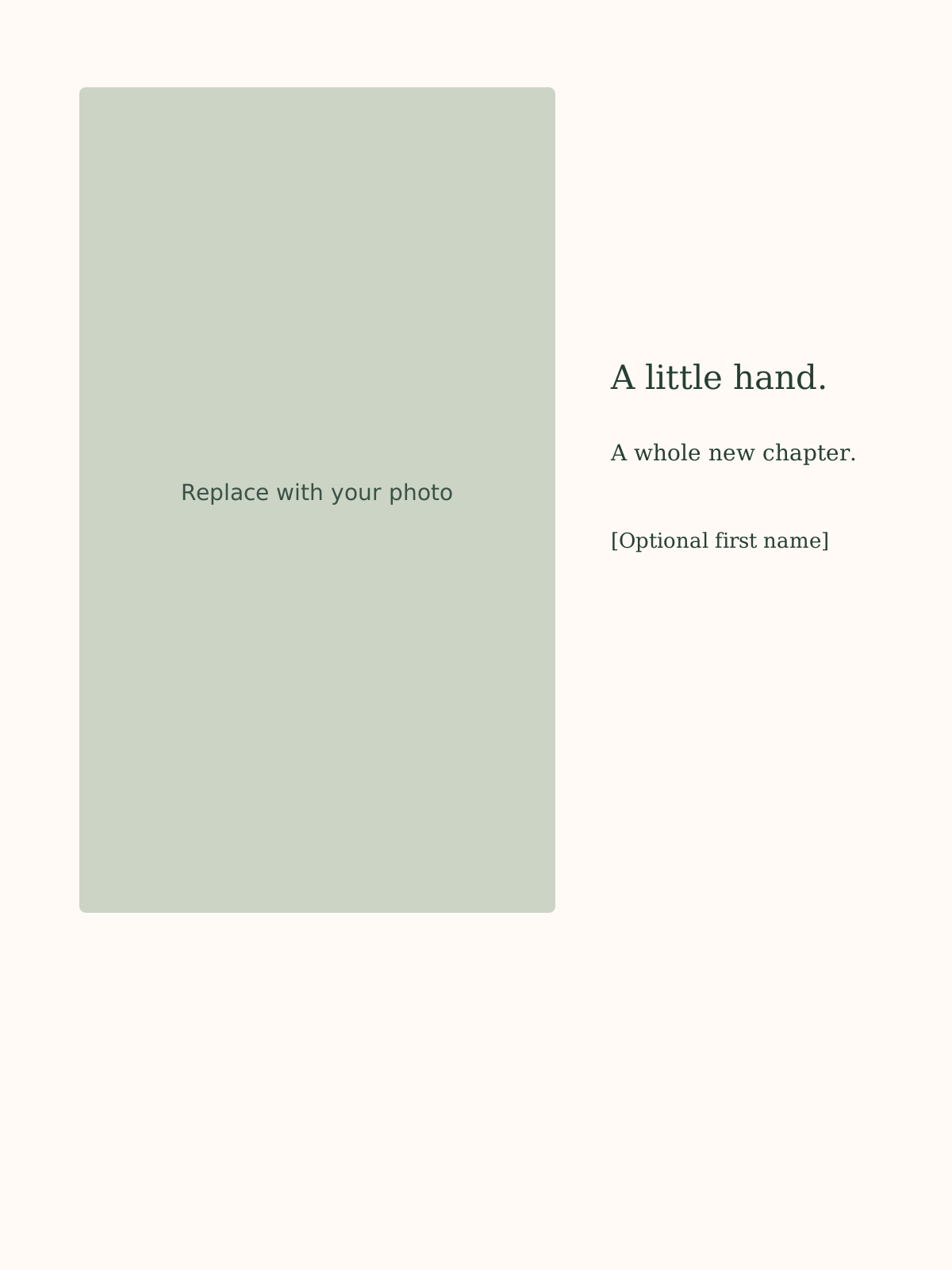
1. Tiny-hand portrait
One tall photo area and a generous text block suit a close photograph of a little hand resting in an adult’s open palm. Keep the fingers natural; there is no need to make the baby grip or hold an object. The contrast in scale tells the story.
Sample words: “A little hand. A whole new chapter.” Add a first name only if you want to. Download the tiny-hand layout.
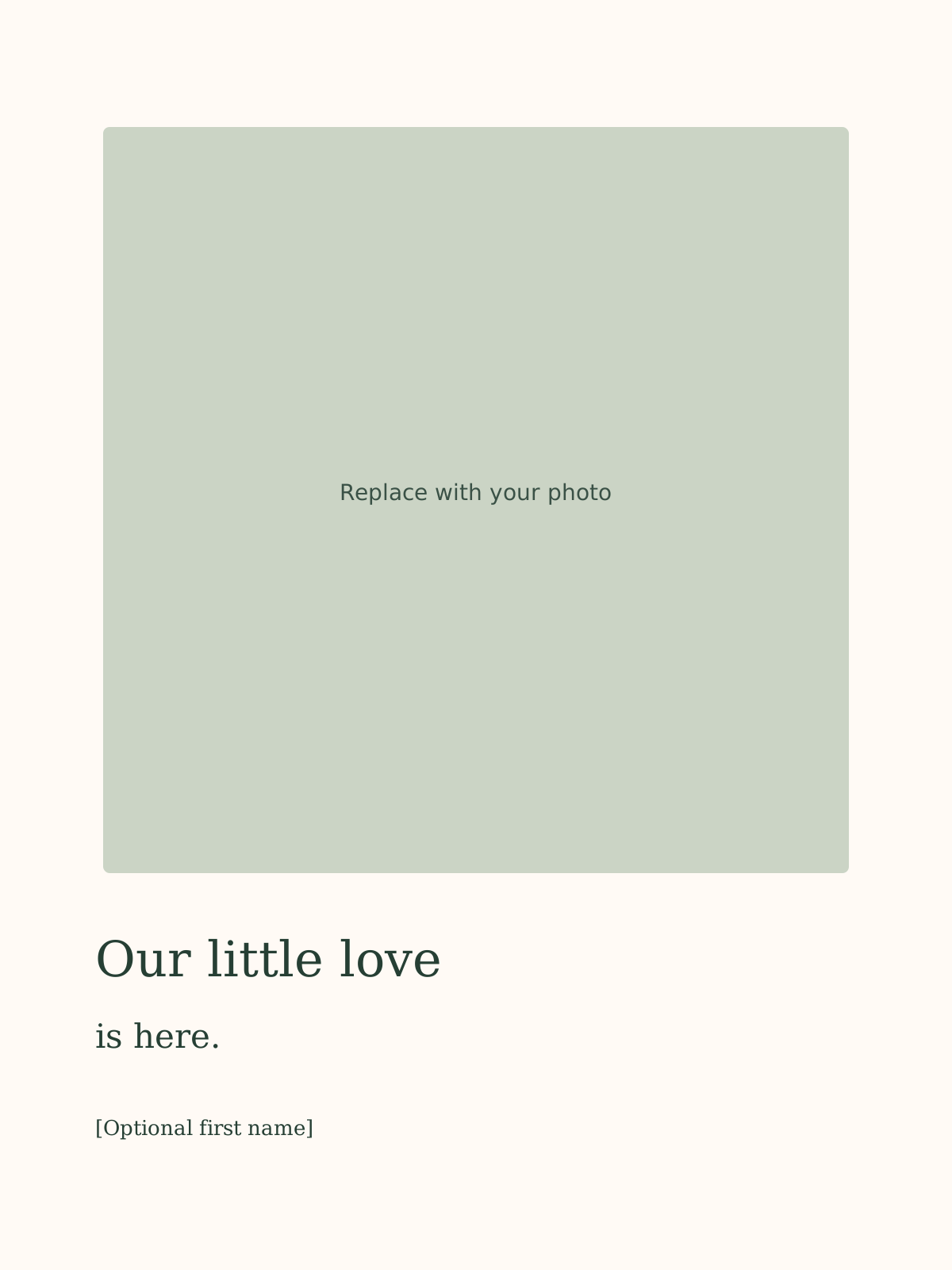
2. Covered-feet square
The square photo window works for two covered feet with a little surrounding clothing. Leave space around the toes so a later crop does not feel cramped. Photograph a comfortable everyday moment rather than moving the baby for a symmetrical pose.
Sample words: “Our newest little love is here.” This version does not need a birth date or weight to make sense. Download the covered-feet layout.
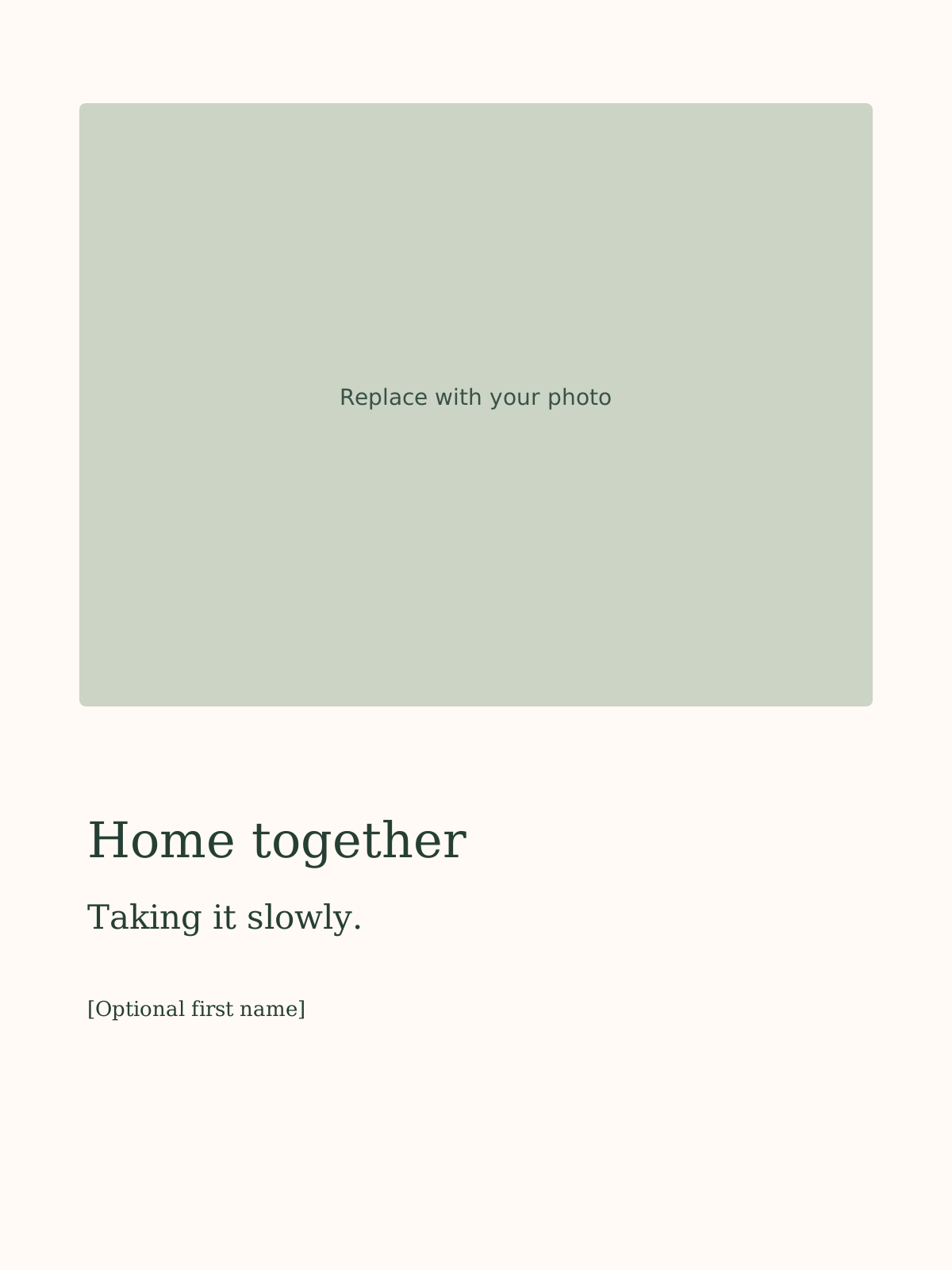
3. Held-close landscape
A wide crop of the baby’s clothed torso in visibly supporting arms feels like a family portrait without showing the face. Check both upper corners for an adult reflection or a partial infant face. A very small visible eye can defeat the crop you intended.
Sample words: “Home together, taking it slowly.” Keep the text below the image rather than over clothing. Download the held-close layout.
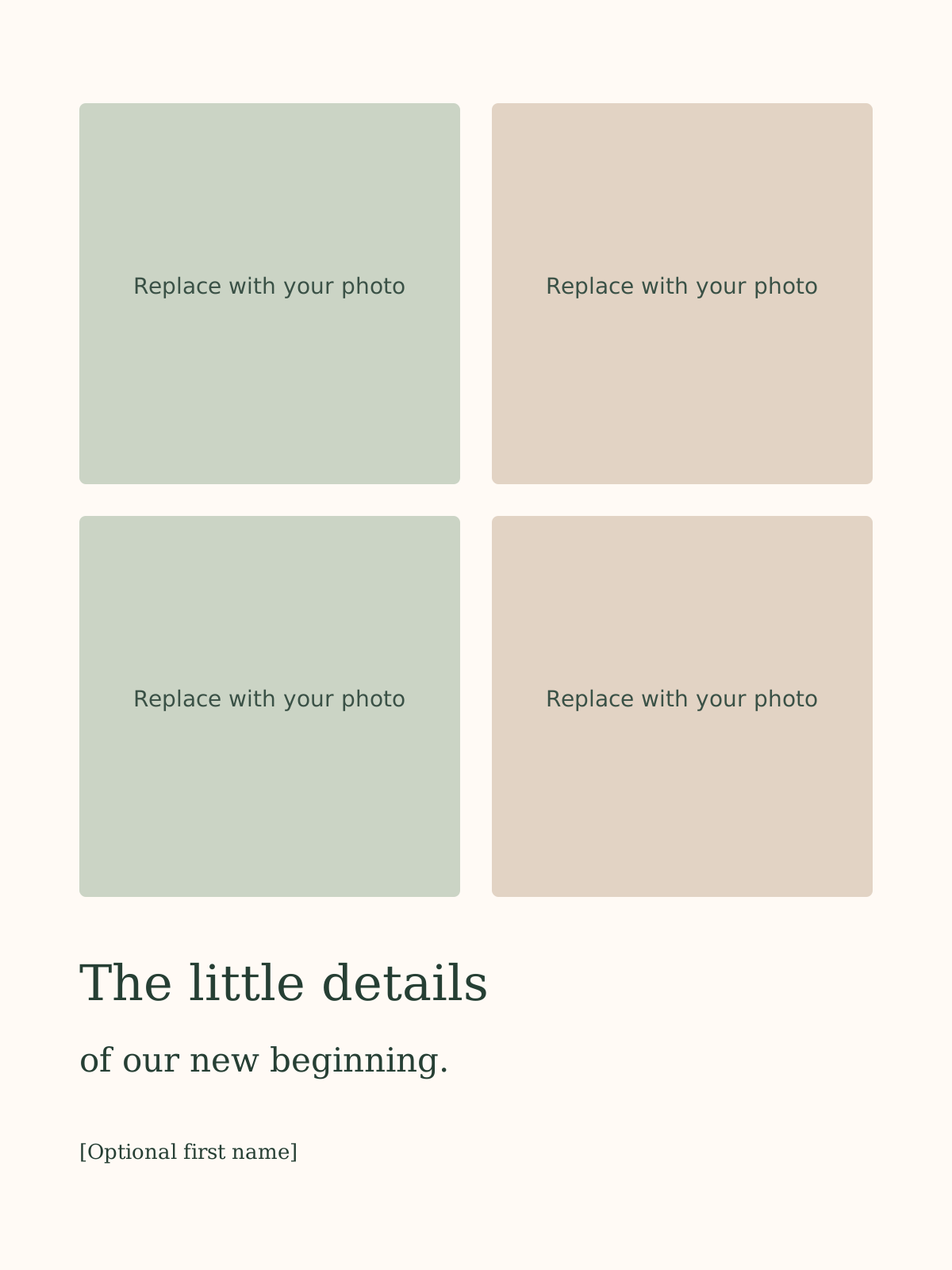
4. Four quiet details
A two-by-two grid combines a hand, covered feet, a sleeve detail and supporting arms. Use four crops from a small set of photographs instead of forcing four separate staged moments. Keep color and brightness close enough that one square does not overwhelm the others.
Sample words: “The little details of our new beginning.” The grid already has visual variety; a short line is enough. Download the four-detail layout.
5. Family-detail panorama
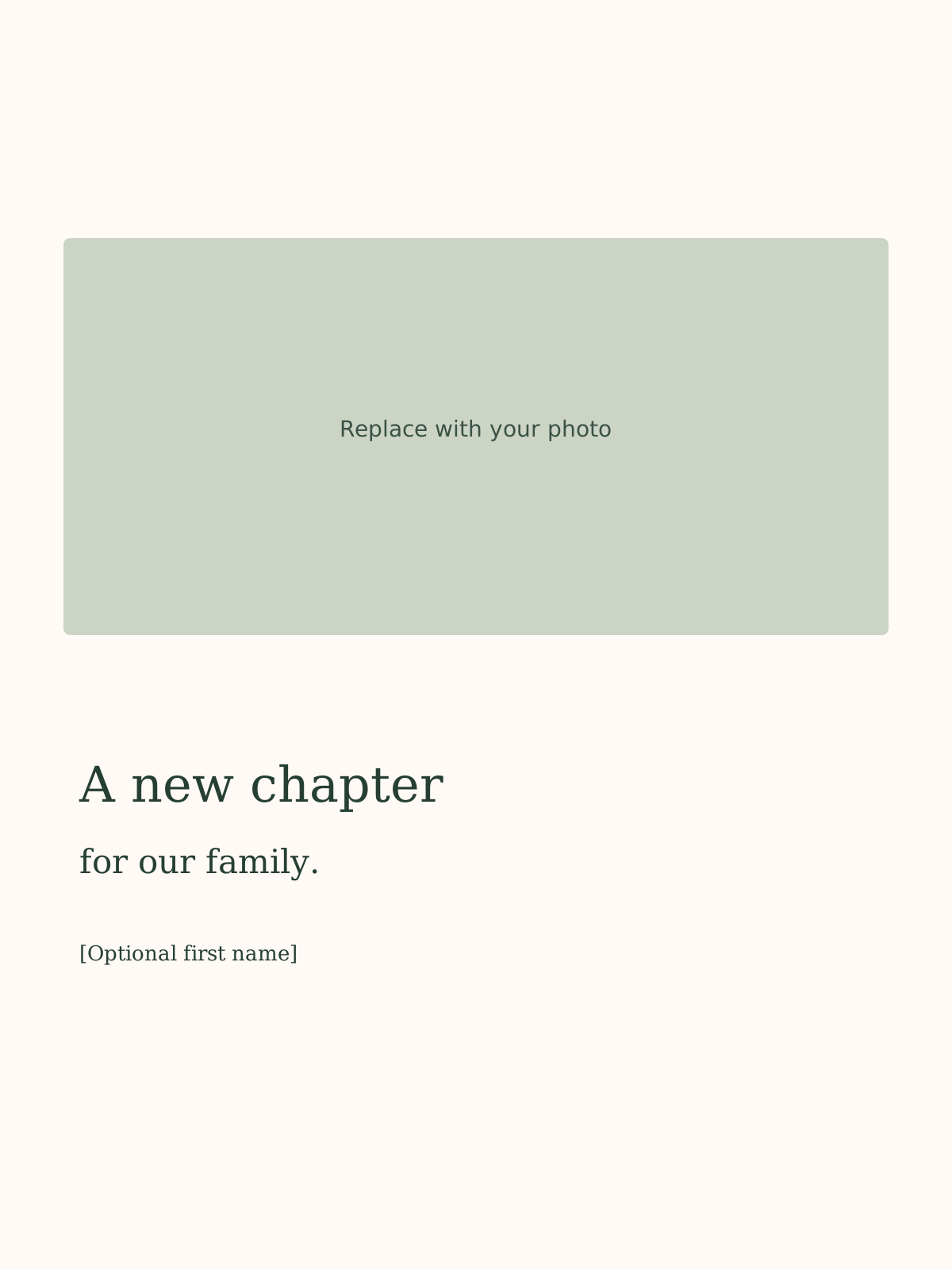
This wider photo area suits several hands or a crop across parent and baby clothing. Keep every supporting hand visible if it is part of the photograph. Use the lower panel for a personal message rather than squeezing words into a busy image.
Sample words: “A new chapter for our family.” This is useful when you prefer to announce the family change without publishing a name. Download the family-detail layout.
How to turn a template into a finished card
- Save a copy of the SVG so the blank original remains reusable.
- Choose the final card shape before placing the picture. Each supplied canvas is 1200×1600; your printer may need a different trim size.
- Replace the labeled photo area with your crop. Use a frame or clipping mask if your editor supports it.
- Replace every bracketed placeholder and remove fields you do not want to publish.
- Export a separate image for messaging. For print, use the printer’s required format, bleed and safe area.
- Open the exported file outside the editor. Check the entire image, not just the zoomed design canvas.
We supply the layouts as editable design starting points, not printer-certified production files. A 1200×1600 canvas also does not guarantee a particular print quality: your inserted photograph and the final physical size matter. See our printing guide before ordering a batch.
A hidden face does not hide every identifying detail
Review hospital bands, embroidery, birth records, recognizable windows, reflections and image-location settings. Words can reveal more than the photograph: a full name plus exact birth date and hospital may be more information than you intended to share publicly. A first name or no name can still make a complete announcement.
If you are starting with a face-visible picture, use the iPhone crop-and-cover guide to prepare a separate share copy. A translucent highlighter is a poor substitute for a fully opaque cover. Keep the original private and send only the checked export.
These layouts reduce the need to show a face; they do not guarantee anonymity or stop recipients saving the card. Ask relatives before including their pictures and choose recipients deliberately. Our broader faceless photo ideas cover source photographs; this page focuses on composing the finished announcement.
Keep the words short enough to read on a phone
One greeting, one optional name and one sentence usually fit better than a block of birth statistics. Use the announcement captions page for original wording, then edit it to sound like your family. A simple “We’re happy to share our news” is more personal than a polished line you would never say.
For WhatsApp, keep a plain-text version of the message too. It remains readable when the image preview is small and gives you a place to ask relatives not to forward the photo. The WhatsApp announcement guide walks through that final step.

Making a separate styled portrait for family?
Totti can create a styled portrait from an existing baby photo. It is an optional creative step, not a face-hiding or anonymization tool. Free download; optional purchases.
View Totti on the App StoreFor iPhone. Free to download; optional in-app purchases. Check current availability and terms before uploading a photo.