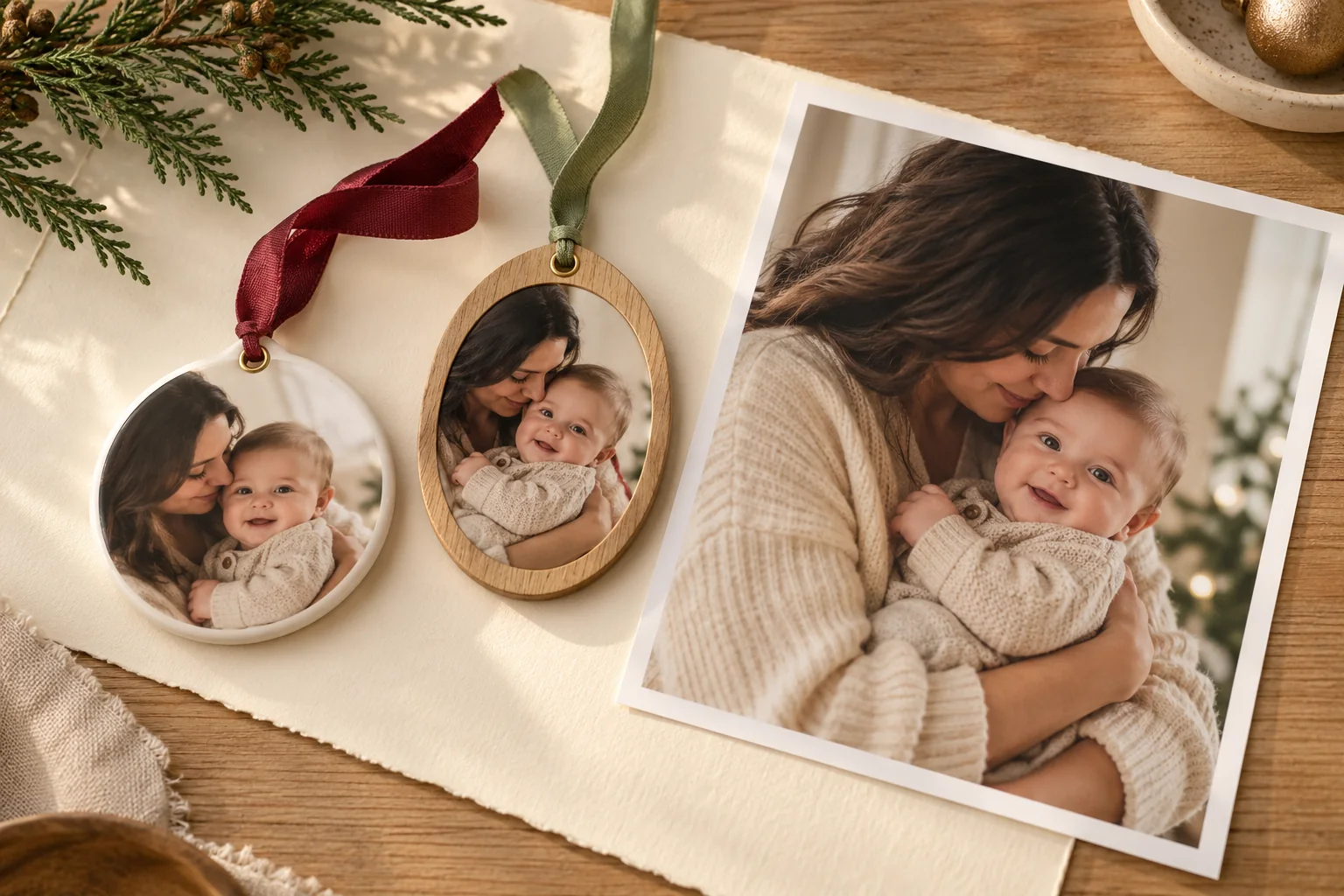
Pick the ornament shape and supplier template before you crop the baby photo. A picture that works in a rectangle can lose a face, hand or printed year inside a circle. Prepare one careful proof before ordering a set for the family.
This is a photo-preparation guide, not a product review or an offer to manufacture ornaments. The hero shows fictional ImageGen products. Totti can optionally create a styled portrait; your ornament supplier controls materials, dimensions, bleed, print quality and delivery dates.
Choose a simple image for a small surface
A close, clear portrait usually remains more readable than a wide scene with several people. A supported parent-and-baby crop can be especially meaningful for a first-Christmas keepsake. If you prefer a face-hidden version, a tiny hand in an adult palm can work, but keep enough context that it still reads at ornament size.
Start with the highest-resolution saved image you have. A thumbnail from a message may look fine on a phone and become soft when printed. Avoid adding fine decorative lines or tiny text until you know the actual physical size. The smaller the surface, the more useful a restrained design becomes.
Match the crop to the ornament
Round ornaments
Keep the important features in the central area and preview the actual circular mask. The corners of a rectangular photo disappear, so a hand placed near a corner may be cut away. Allow for the hanging-hole region and the supplier’s safe area rather than filling every edge with a face.
Oval ornaments
A tall oval can suit a close supported portrait. Check both sides of the head and any adult hands; the curve narrows quickly near the top and bottom. Do not assume a preview that merely shows a rectangular photo on an oval product has applied the final production crop.
Rectangular or shaped ornaments
A rectangle may preserve more of a family moment, while a decorative shape can remove unexpected areas. Use the supplier’s exact template when one is available. If the design has two sides, check whether each side needs a separate file or a particular orientation.
Check pixels against the actual print area
A useful planning calculation is pixels = inches × requested pixels per inch. If a supplier asks for 300 pixels per inch across a three-inch image area, that area needs about 900 pixels across before allowing for any additional bleed. This is arithmetic for that example, not a universal ornament requirement. Follow the supplier’s own specification.
Cropping reduces the pixels you keep. A 2000-pixel-wide source does not leave 2000 usable pixels when you take a small central square from it. Inspect the exported crop’s dimensions, then compare them with the required print area. Changing a resolution label alone does not create missing detail.
Our baby-photo printing guide explains the same relationship for other keepsakes. Do not sharpen until skin and eyelashes look brittle in an attempt to rescue a tiny source. Another photograph is often the better solution.
Add the year after the portrait is finished
Type the year and optional first name as editable text in the supplier’s designer or your layout tool. Keep text inside the safe area, away from holes, curves and seams. A short “First Christmas · [year]” line may be enough. Check the year on both sides if you are using a two-sided product.
Do not let a generated image supply the final factual lettering. If the portrait already contains garbled words or an incorrect number, choose a clean version rather than covering them with increasingly small text. Our first-Christmas wording page offers lines to adapt without borrowing lyrics.
If you want a seasonal portrait first
Totti can be an optional portrait stage: start with a clear existing photo, browse the currently available styles and approve the generated result. The app does not supply the physical ornament or guarantee that an export fits a particular printer’s template.
Keep a real source and compare the face, hands, clothing and support at full size. For another creative route, the Christmas prompt article shows three actual ImageGen background edits made from one fictional source. They illustrate possible directions, not Totti template availability or printer-ready files.
Proof once before ordering several
- Open the actual cropped export, not just the original photo.
- Check that the supplier preview matches the intended front and reverse.
- Confirm spelling, year, crop, safe area and any hole or hanging hardware position.
- Review the supplier’s material, finish, dimensions, turnaround and delivery information.
- Order a sample when timing and cost allow, especially before a large gift batch.
Do not assume one provider’s bleed or delivery promise applies to another. If a deadline is close, choose based on the supplier’s current confirmed information rather than a general blog estimate.
Prepare ornaments on an adult worktable, away from babies and small children. Do not put cords, ribbons, breakable ornaments or small keepsake parts beside a baby for a photograph. The finished ornament is an adult keepsake, not a posing prop or toy. For a different gift format, see photo gifts for grandparents.

Want a seasonal portrait for your ornament?
Explore Totti’s current portrait styles on iPhone, review the generated photo, and use your ornament supplier’s template for the final crop. Optional in-app purchases apply.
View Totti on the App StoreFor iPhone. Free to download; optional in-app purchases. Check current availability and terms before uploading a photo.